Screen Mirroring - Cast to TV
- 3.1
- Rating
- 5.00M
- Installs
- Free
- Price
 Analysis by App-foxy
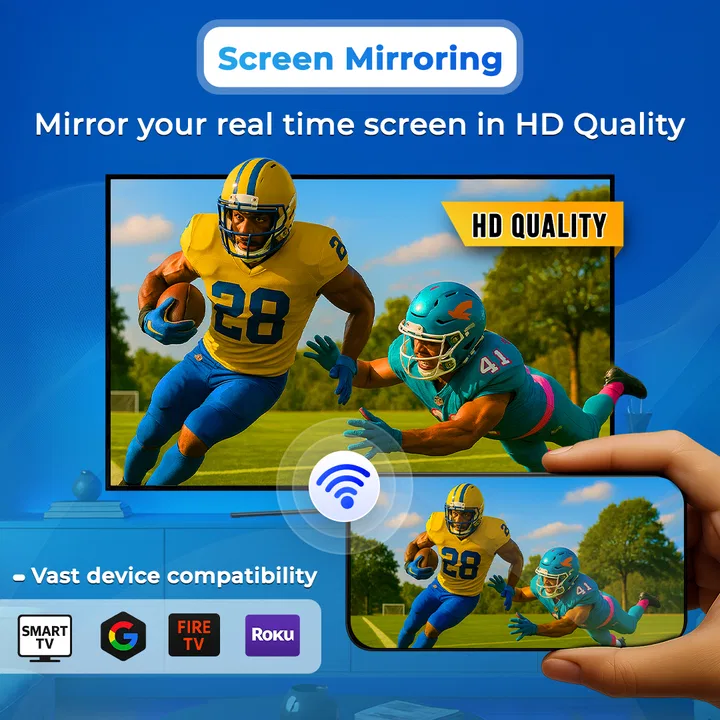
Screen Mirroring - Cast to TV is a free tools app from Tools for Daily Use that focuses on one straightforward job: putting your phone’s display on a television. I approached it as the kind of utility someone opens when a small screen is no longer convenient—perhaps to show photos to family, follow a video from across the room, or share something with a group. The idea is simple, but screen casting is one of those tasks where the result depends on more than the app itself.
My overall impression is mixed but useful. The app can be a convenient starting point for phone-to-TV sharing, and its large install base shows that many people are looking for exactly this kind of tool. At the same time, a 3.1 average from around 5.7 thousand ratings suggests that the experience is not consistently smooth for everyone. I would recommend trying it when you want a direct casting utility, but I would also approach it with realistic expectations: successful mirroring depends on the phone, television, network, and receiving technology working together.
Where the experience usually gets stuck
The first difficulty is often not finding the mirroring command but identifying what the television can actually receive. A phone may be able to discover a television, streaming device, or compatible receiver, yet discovery alone does not guarantee a stable mirrored image. If the TV is showing the wrong input, the phone is connected to a different network, or the receiving function is not ready, the app can appear unresponsive even though the underlying problem is elsewhere.
You May Also Like

 Blood Strike: 2.5 Anniversary
Blood Strike’s Loadouts Turn Every Drop Into a Tactical Gamble
A close look at Blood Strike’s custom loadouts: how fast access to signature weapons reshapes its battle royale rhythm, rewards preparation, and narrows the gap between fights.

 Pandora - Music & Podcasts
Pandora’s Music Is Easy to Start, but Harder to Recover
Pandora’s strength is its low-effort path from a seed to a station. Its weak spot is how much confidence it asks you to place in connection, setup, and quiet recovery.

 8 Ball Pool
 Is Built on Rivalries, Rematches, and Routine
A close look at the rivalries, rematches, shared routines, and unanswered safety questions that turn a quick pool match into a persistent mobile community.

 Samsung Music
’s Quiet Strength Is Playing What You Already Own
Its reach comes less from spectacle than from dependable access to a personal library. That simplicity is both the app’s strongest retention engine and its ceiling.

 AccuWeather: Weather Radar
AccuWeather Review: A Quick, Clear Forecast for Everyday Decisions
For everyday plans, the best forecast is the one you can understand quickly. AccuWeather makes rain timing, radar, and local conditions easy to act on, with a few trade-offs.

 Hill Climb Racing
Why Hill Climb Racing Still Turns Crashes Into One More Run
A tiny car, a bumpy hill and one more upgrade: Hill Climb Racing keeps resurfacing because its simple chaos makes every near-miss feel personal.
More From Our News Desk



This is why I would not judge the app after tapping the cast option once and seeing nothing happen. Screen sharing involves a chain of connections. The phone has to locate a suitable target, the target has to accept the session, and the network has to carry the display data without interruption. A failure at any point can look like an app failure.
Another common point of confusion is the difference between sending one piece of media and mirroring the entire phone. A media-specific casting option may hand a video or photo to the TV, while mirroring reproduces what is visible on the phone. That distinction matters. If you want to show a gallery, a browser page, or an app interface, full-screen sharing is the relevant workflow. If you only want to play a supported video, the TV’s own casting option may be more efficient.
I also found that expectations about delay need to be kept sensible. Mirroring is not the same as connecting a physical cable. Even when the picture appears correctly, touch actions on the phone and movement on the TV may not feel perfectly simultaneous. That is usually acceptable for viewing photos, reading a page, or demonstrating an app. It is much less suitable for fast games, precise editing, or anything where every tap must appear instantly.
The app’s simple purpose is its biggest advantage for casual users, but simplicity can also leave people unsure about what to do next. If the television is not listed, repeatedly pressing the same button rarely solves the problem. I get better results by checking the environment first, then restarting the discovery process rather than assuming that another tap will force a connection.
What I check before blaming the app
My first check is the network. The phone and the TV or receiver should normally be connected to the same local Wi-Fi network. A phone using mobile data while the television uses home Wi-Fi is an obvious mismatch, but less obvious versions happen too: one device may be on a guest network, a range extender may separate devices, or a router may prevent local communication between connected clients.
I also look at the television itself. The correct input must be selected, and any built-in screen-sharing or receiving mode needs to be ready. Some TVs wait for a connection request before displaying anything; others expose a dedicated sharing option. If the television is asleep, showing another source, or waiting for a different connection method, the phone may have nowhere to send the image.
Then I check the phone’s wireless state. Wi-Fi should be enabled, and I avoid testing from a location where the signal is weak or constantly changing. A screen mirror sends a live stream rather than a single file, so an unstable connection can cause a black screen, stuttering, a delayed picture, or a session that disconnects after appearing to work.
Restarting both ends is a surprisingly practical step. I close the app, wake the TV fully, and reconnect the phone to Wi-Fi before trying again. This clears temporary discovery problems without changing anything important. I would do this before reinstalling the app or changing advanced router settings, because many short-lived connection issues disappear after the devices establish a fresh local session.
It is also worth checking compatibility in plain language. The app is designed for screen mirroring, but that does not mean every television accepts every form of wireless display. A TV can have Wi-Fi and still lack the receiving technology needed for this particular type of sharing. If the phone never discovers the television despite matching networks and a ready receiver, the limitation may be between the two devices rather than inside the app.
A setup routine that avoids unnecessary frustration
I recommend beginning with the simplest possible test. Put the phone and television on the same home network, select the TV’s sharing or receiving screen, and open the app with other casting tools temporarily closed. Competing connection sessions can make it unclear which service is attempting to control the display. Once the TV appears, select it and wait rather than repeatedly switching between targets.
For a first test, use something visually obvious but not demanding, such as a settings screen or a still image. This helps separate connection problems from bandwidth problems. If a static screen appears but a moving video struggles, the connection is probably being established and the remaining issue concerns the quality of the live stream. If nothing appears at all, return to the network and receiver checks.
Keep the phone reasonably close to the wireless access point during setup. Distance from the router matters more than distance from the TV in many homes, especially when the television and phone are in different rooms. Once the session is stable, you can move the phone and see whether the connection remains reliable. This small test tells me whether the problem is general compatibility or simply weak coverage.
I also avoid locking the phone immediately after starting a mirror. Some devices reduce background activity when the screen is turned off, and mirroring naturally depends on the phone continuing to provide the display. If the image disappears when the phone sleeps, that behavior may be expected for a live screen-sharing session rather than evidence that the TV has failed.
Another useful habit is to start with a clean connection instead of leaving an old session hanging. Stop the current mirror from the app, wait for the TV to return to its normal state, and begin again. This is especially helpful after switching between televisions or receivers. A fresh session makes it easier to tell which target is active and prevents you from troubleshooting the wrong device.
Recovering a session that drops or looks wrong
When the picture freezes, I first look at whether the phone itself is still responsive. If the phone is also slow, the issue may be workload or network congestion. I close unnecessary activities, move closer to the router, and retry with a less demanding screen. If the phone remains normal while the TV freezes, I end the mirror cleanly and reconnect rather than leaving the stalled session running.
A black screen deserves a slightly different approach. I check that the TV is still on the correct input and that the receiver has not returned to its home screen. Then I stop sharing and start again. If the black screen appears only with one particular app or type of content, the source app may be restricting capture or handling its display differently. In that situation, changing the mirroring utility may not solve the restriction.
If the television disappears from the device list, I repeat the basic discovery sequence: confirm the same network, make the receiver ready, close and reopen the mirroring app, and give the scan time to complete. I would not immediately reset the router. A short restart of the phone’s Wi-Fi connection can be enough to refresh local discovery, and it is less disruptive to everyone else using the network.
For a delayed image, I reduce the distance to the router and pause other heavy network activity. Someone watching a high-bandwidth stream, downloading a large file, or using a crowded wireless connection can affect a live mirror. The app may still be functioning correctly while the network struggles to deliver the display quickly enough.
There is also a practical recovery method for presentations or family viewing: prepare the content before connecting. Open the photo album, webpage, or document first, then begin mirroring. This reduces the number of rapid app switches during the session and makes it easier to recover if the connection briefly drops. It is a small workflow improvement, but it avoids the awkward situation where the TV is showing a loading screen while you search through the phone.
When a different tool is the better answer
This app is not automatically the best option for every form of casting. If your television already offers a reliable built-in casting button for a particular video service, I would use that for playback. Handing the video directly to the TV generally avoids reproducing every phone action and can leave the phone free for other tasks. Screen mirroring is more valuable when the content does not have its own cast control.
A cable is also preferable in some situations. For a meeting, classroom demonstration, or long viewing session where reliability matters more than convenience, a wired connection can avoid wireless discovery and network interference. It may be less flexible, but it gives you a clearer path when a dropped mirror would be embarrassing or disruptive.
Likewise, people who want low-latency gaming should be cautious. The app’s purpose is sharing the phone screen, not turning a television into a perfectly synchronized gaming monitor. A small delay may be harmless for a turn-based game or a casual demonstration, but it can make fast controls feel wrong. For that audience, a dedicated gaming connection or a device designed for low-latency output is a better fit.
I would also skip this type of app if your main goal is simply moving files to a TV. Mirroring keeps the phone involved throughout the session, whereas a file transfer, USB drive, or TV media app may be cleaner for repeated playback. The right choice depends on whether you need a live copy of the phone or only the final photo or video.
Who will get the most from it
In my view, the strongest audience is the casual Android user who wants a practical way to show phone content on a larger screen and does not want to learn a complicated media server. It can be useful at home for sharing holiday photos, displaying a recipe while cooking, reading an article with several people, or showing a mobile app to someone sitting nearby.
Consider a realistic evening scenario. I have photos on my phone that I want to show to family in the living room. Instead of passing the phone around, I connect it to the television, open the album, and move through the pictures from the handset. The benefit is not advanced control; it is simply that everyone can see at once. If the TV is compatible and the network is ready, this is exactly the sort of small task for which the app makes sense.
It can also help when a website or app has no dedicated TV playback option. Mirroring fills that gap by showing the phone’s visible screen. The trade-off is that notifications, orientation changes, and accidental taps can become visible too. Before sharing in front of others, I turn on a distraction-free setup and avoid opening private messages or unrelated screens.
The app is free to install, carries an Everyone content rating, and supports devices running Android eight or later. Its current version is 5.0.37, so users on older Android releases should check their device before planning around it. Optional in-app purchases range from forty-nine cents to ninety-nine dollars and ninety-nine cents per item, which is a broad range; I would pay close attention to any purchase screen and avoid assuming that every useful function is included without cost.
Tools for Daily Use has kept the product positioned as a utility rather than a media platform. That focus is helpful because the purpose is immediately understandable. Still, the app’s 5M-plus installs should not be mistaken for a promise that it will work with every TV. Popularity tells me that the need is common, while compatibility remains a device-by-device question.
My practical verdict after weighing the trade-offs
Screen Mirroring - Cast to TV is worth trying if you need a free, direct route from an Android phone to a compatible television. I like the basic use case because it solves a real household problem without requiring a separate workflow for every photo, webpage, or app. When the network and receiver are prepared, the experience can be pleasantly simple.
My reservation is that the app cannot remove the technical conditions built into wireless mirroring. A television that does not support the relevant receiving method, a separated guest network, weak Wi-Fi, or a source app that handles protected content differently can all produce disappointing results. Those limitations are important because a user may otherwise spend time reinstalling an app when the real obstacle is the TV or network.
The best way to evaluate it is with a short, controlled test: use the same network, prepare the TV’s receiving mode, start with a still image, and then try the content you actually want to share. That approach quickly reveals whether the app fits your setup. If it does, the convenience is real. If it does not, a built-in cast function, cable, or dedicated receiver may be the more dependable answer.
I would recommend it to people who value convenience and occasional screen sharing more than perfect responsiveness. I would not make it my first choice for professional presentations, competitive gaming, or long sessions where a connection drop would matter. With those boundaries in mind, this is a reasonable tools app to keep available: not a universal solution, but a useful option when your phone and television are ready to cooperate.
FAQs for Screen Mirroring - Cast to TV
01What is Screen Mirroring - Cast to TV, and what can I use it for?
Screen Mirroring - Cast to TV is designed to display your phone or tablet screen on a compatible television or streaming device. After connecting both devices to the same Wi-Fi network, you can mirror photos, videos, presentations, websites, and some apps on a larger screen. It can be useful for sharing content with family, giving presentations, or watching locally stored media, although the exact features depend on your phone, TV, and network.
02How do I connect my Android or iPhone to a television with this app?
First, connect your mobile device and television to the same wireless network and make sure the TV or receiver supports a compatible casting or mirroring technology. Open the app, allow the requested local-network or nearby-device permissions, and select your television from the available devices. Some TVs require you to confirm a connection request or enable screen mirroring in their settings before the display appears.
03Does Screen Mirroring - Cast to TV work with every smart TV or streaming device?
Compatibility is not universal. The app may work with many smart TVs and receivers that support common casting, wireless display, or screen-mirroring standards, but results can vary by brand, operating system, and model. Older televisions may need an external casting device. Before downloading, check whether your TV supports the connection method used by the app and whether both devices can operate on the same Wi-Fi network.
04Why might the mirrored image lag, disconnect, or appear in lower quality?
Screen mirroring relies heavily on the quality of your wireless network. Weak signal strength, network congestion, an older router, distance from the router, or demanding high-resolution content can cause delays, buffering, dropped connections, or reduced image quality. For better performance, place the phone and TV near the router, close unnecessary apps, use a stable network, and avoid connecting through guest Wi-Fi or networks that block device discovery.
05Are there limitations when mirroring streaming services or protected content?
Yes. Some streaming platforms, video players, and subscription services use digital rights management that prevents ordinary screen mirroring or shows a blank screen. The app can generally mirror compatible phone content, but it cannot bypass restrictions imposed by the service, operating system, or content owner. For protected video, using the streaming service’s official TV app or built-in cast button is usually more reliable than mirroring the entire screen.
Pros
- Works with many smart TVs and streaming devices.
- Simple setup with clear connection instructions.
- Useful for sharing photos
- videos
- and presentations.
- Supports both portrait and landscape screen orientations.
- Convenient for viewing mobile content on a larger display.
Cons
- Performance depends heavily on Wi-Fi strength and network stability.
- Some advanced features may require a premium subscription.
- Audio and video can occasionally fall out of sync.
- Not all apps permit casting due to content protection limits.
- Casting may increase battery usage during extended sessions.

Screen Mirroring - Cast to TV
Gallery